Introduction
You've seen the LinkedIn posts: "Make your resume ATS-friendly with AI." But sending your private career history to a cloud service like ChatGPT feels risky. Enter the local large language model (LLM). Running a powerful AI on your own machine gives you total privacy, complete control, and often yields better, more tailored results. In this guide, you'll learn how to use a local LLM to rewrite your resume—so it passes automated screenings and impresses human recruiters—without ever uploading your data to the internet.
What You Need
- A computer with at least 8GB RAM (16GB+ recommended). A GPU with 6GB+ VRAM speeds things up, but CPU-only works for smaller models.
- Local LLM software: Ollama (simplest), LM Studio, or llama.cpp.
- A text file of your current resume (plain text, no formatting).
- Basic comfort with a command-line interface (for Ollama) or a GUI (for LM Studio).
- An idea of the job titles or industries you're targeting.
Step-by-Step Instructions
Step 1: Install and Download a Local LLM
Start by picking a local LLM runtime. For beginners, Ollama is the easiest. Download it from ollama.com and install. Then open a terminal and pull a model optimized for text generation, such as:
ollama pull llama3.1:8bThis downloads Llama 3.1 8B (~4.7GB). If you have limited RAM, try mistral:7b or phi3:3.8b. Wait for the download to finish—it may take a few minutes depending on your internet speed.
Step 2: Prepare Your Resume as Plain Text
Copy your resume content into a plain text file. Remove all special formatting, tables, and graphics. Keep only the raw text: job titles, bullet points, skills, and education. Save it as resume_original.txt. This ensures the LLM sees exactly what an ATS system would parse.
Step 3: Craft a Contextual Prompt
The key to a great rewrite is a detailed prompt. Write a system message or initial user prompt that includes:
- Your target job title and industry.
- Which sections to rewrite (e.g., experience, summary, skills).
- Specific instructions: "Use strong action verbs, quantify achievements, include keywords like 'agile' and 'stakeholder management', keep each bullet under 2 lines."
- Mention that the resume must be ATS-friendly (avoid tables, use standard section headers).
For example: "You are a professional resume writer. Rewrite the 'Experience' section below for a Senior Data Analyst position at a fintech company. Use metrics where possible, keep it concise, and include the keywords: SQL, Python, Tableau, A/B testing."
Step 4: Run the LLM and Iterate
Feed the prompt and resume text into your local LLM. With Ollama, you can use the terminal:
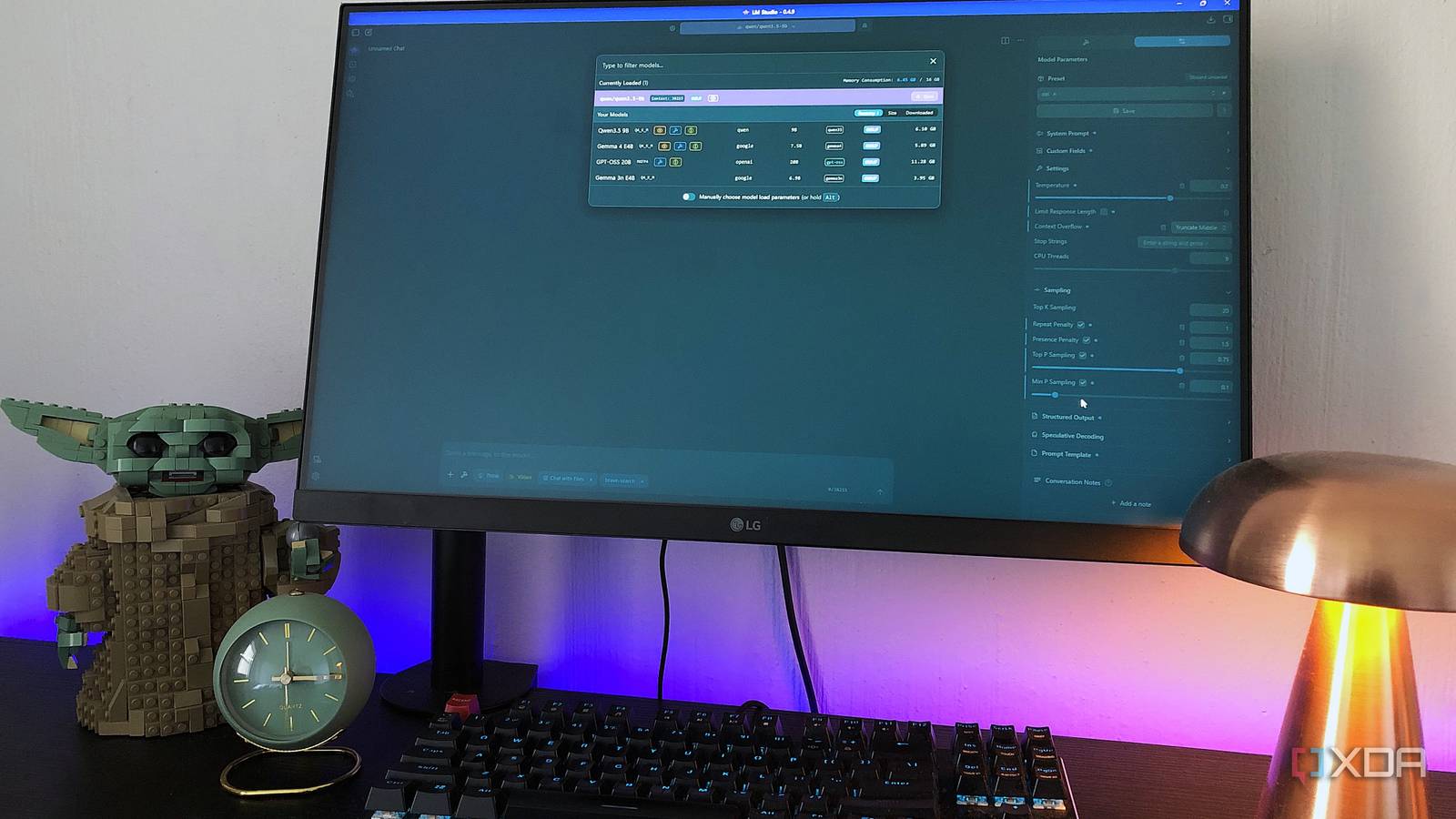
cat prompt.txt resume_original.txt | ollama run llama3.1Or use LM Studio's chat interface for a more visual approach. Review the output. It won't be perfect the first time. Iterate by:
- Adjusting the prompt (more context, fewer constraints).
- Requesting a rewrite of only one bullet point if others are fine.
- Asking the model to "make it more results-oriented" or "add more technical jargon."
Step 5: Test with an ATS Simulator
Before finalizing, check if your rewritten resume passes automated screenings. Use a free tool like Jobscan or Resume Worded. Paste the new resume text and the job description. Evaluate the match score. If it's low, go back to Step 4 and ask the LLM to incorporate missing keywords or rephrase certain phrases.
Step 6: Format Professionally
Take the final plain text and paste it into a professional resume template (e.g., in Google Docs or Microsoft Word). Use a clean, ATS-friendly layout: standard fonts (Arial, Calibri), no images, clear section headers. Double-check for typos and consistency.
Step 7: Save and Repeat for Each Application
Tailor your resume for each job opening. Keep a master version and a folder of prompts for different roles. When you apply, load the master, adjust the prompt per job description, and run the LLM again. This ensures each submission is optimized.
Tips for Best Results
- Temperature matters: For resume rewrites, use a low temperature (0.2–0.4) to keep the output factual and conservative. Higher temps introduce creativity but may exaggerate your qualifications.
- Provide examples: Show the model a sample bullet point you like before asking it to rewrite others. This aligns its style with your preference.
- Don't over-optimize: ATS systems look for relevant keywords, but stuffing too many makes the resume sound unnatural. Balance is key.
- Backup original: Always keep your original resume version. The LLM might delete important context or change your voice.
- Combine with human review: No AI is perfect. Read every rewritten bullet aloud. If it doesn't sound like you, revise it.
For more advanced techniques, see Step 3 on crafting prompts and Step 5 on ATS testing.